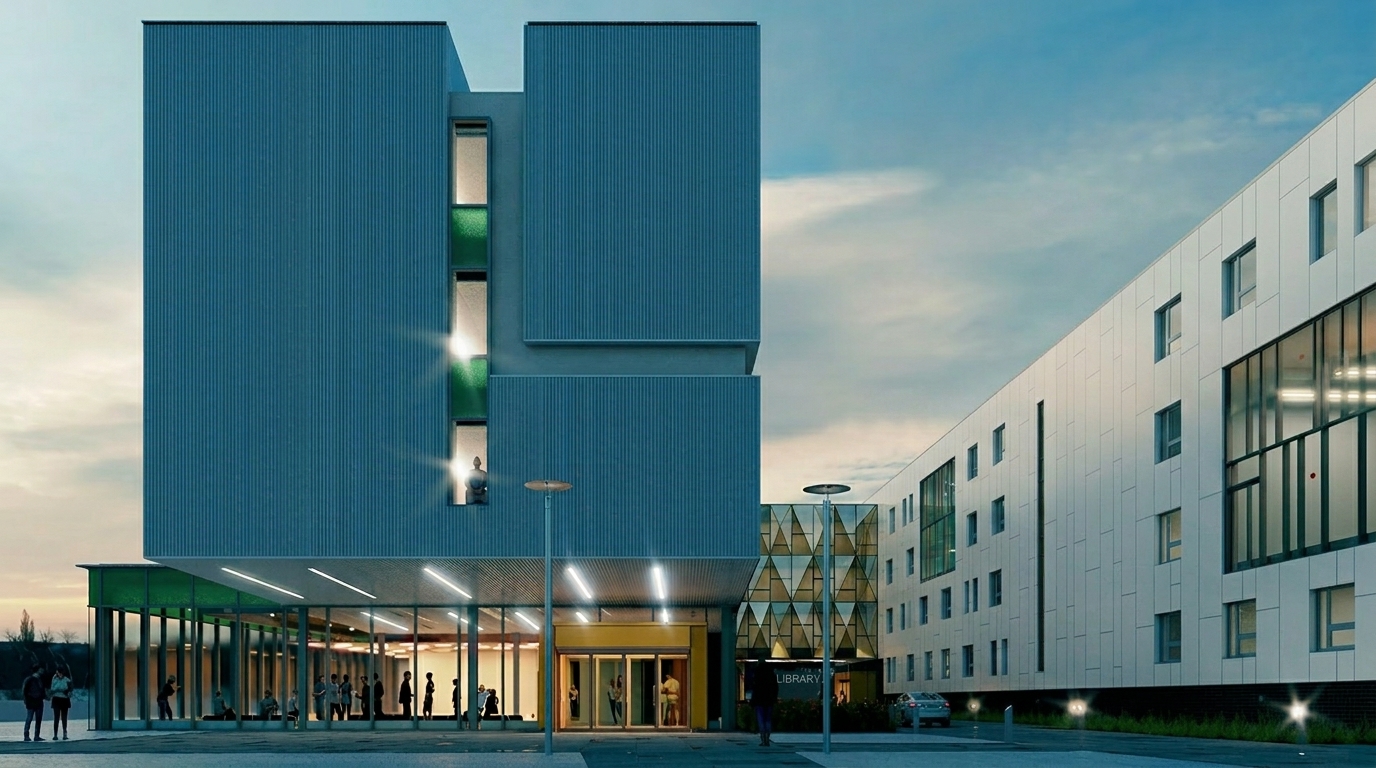
Bring Your Revit 3D Model to 4K Photoreal in Seconds.
ReRender AI turns your Revit model into 4K photorealistic renders instantly — enhancing every material, light and shadow detail with the depth and realism of professional architectural photography. No plugins, no complex setup, just better results.
Start RenderingTrusted by teams who render Revit models for clients
Architecture and design studios worldwide use ReRender AI to turn Revit 3D models into 4K photoreal results — without changing your original geometry or materials.
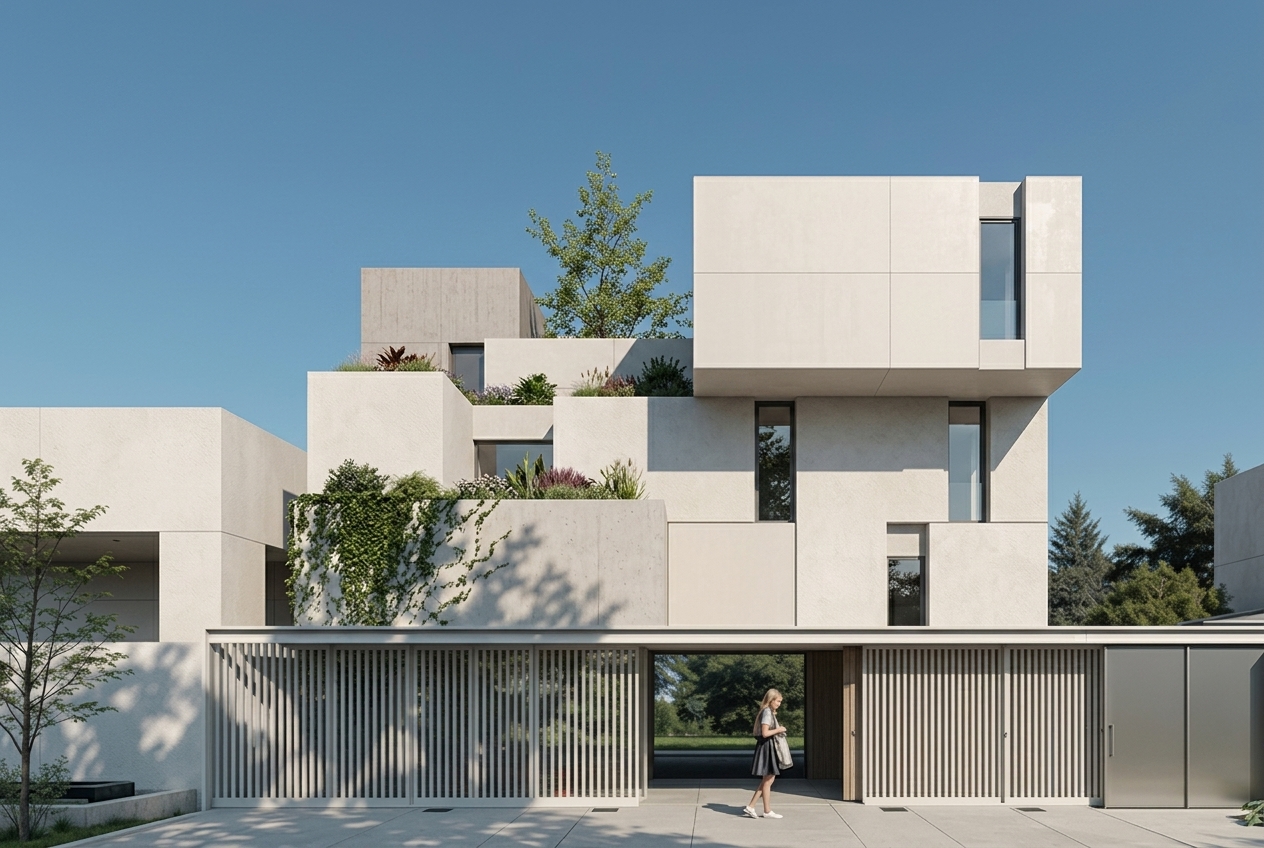
From Your Revit Model. ReRender AI Delivers Photoreal Results.
Every material detail enhanced to 4K photoreal quality. From the texture of stucco-clad volumes to the rhythm of timber slat screens and the depth of rooftop greenery — surface realism that elevates your Revit renders to the standard of a professional architectural portfolio.
Three steps from Revit model to 4K photoreal
Your existing Revit workflow stays exactly the same. ReRender AI adds one step at the end — no plugins, no complex setup, just 4K photoreal results with every material detail and structure preserved.
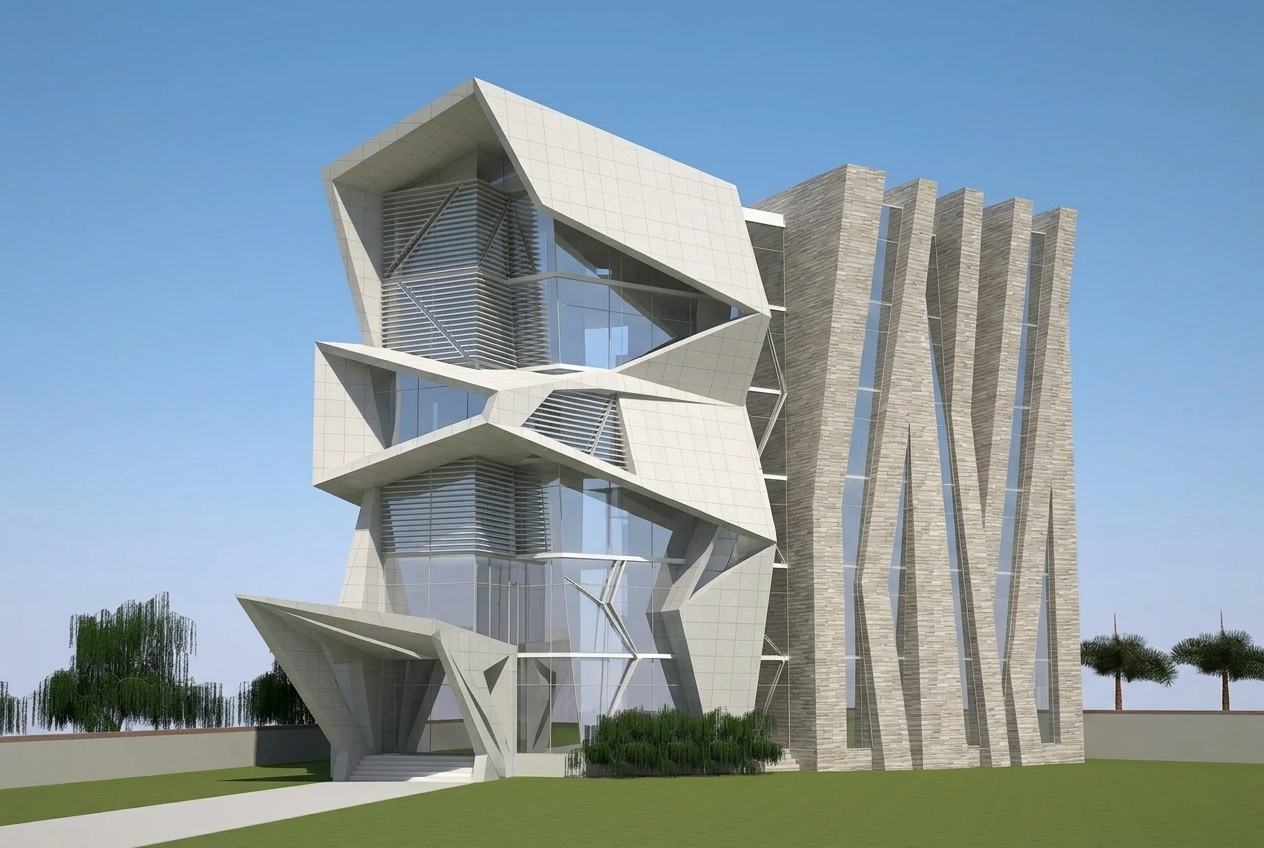
Export your Revit model
Render your scene in Revit as you normally would. Export the result as an image file. No changes to your existing workflow required.
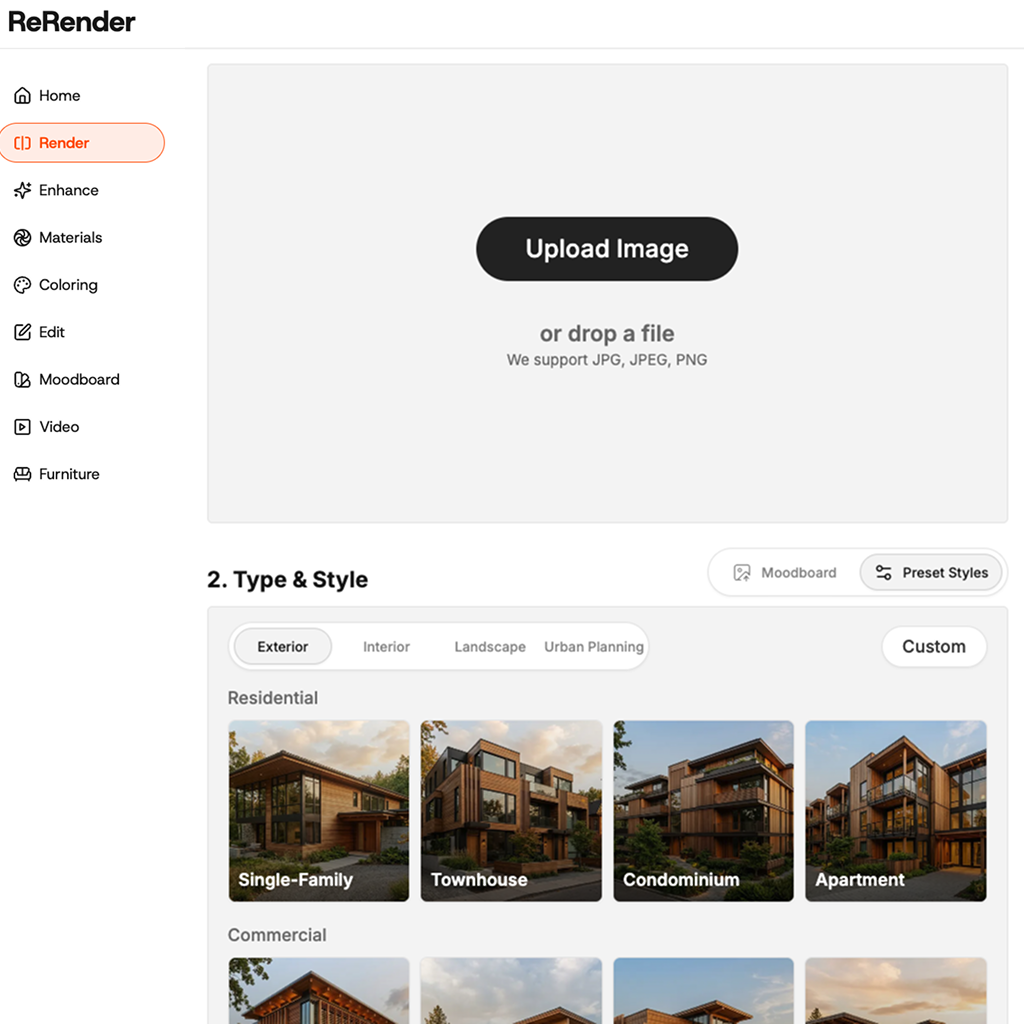
Upload and Select Your Building Type and Style
Open ReRender AI and select Render from the left menu. Upload your Revit export, choose your building type — Exterior, Interior, Landscape or Urban Planning — and select a preset style that matches your design direction.
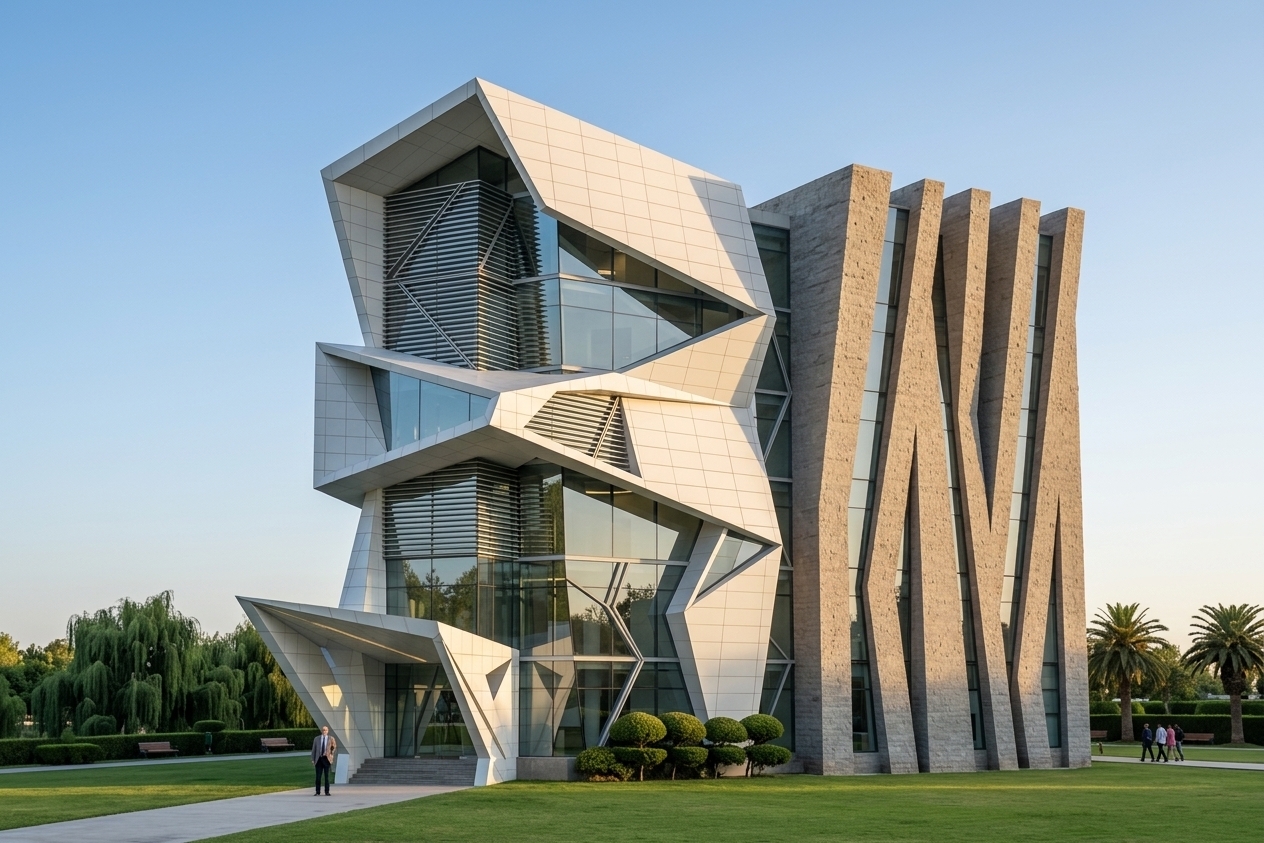
Get 4K photoreal results in seconds
ReRender AI enhances every surface detail to 4K photorealistic quality with your original geometry preserved. Download your result and share with clients immediately.
What ReRender AI adds to your Revit workflow
ReRender AI preserves your original Revit geometry and enhances every material detail and surface realism — delivering 4K photoreal results that look like professional architectural photography.
Seconds to Studio-Quality 4K
ReRender AI processes your Revit export and delivers 4K photoreal results in seconds. Original geometry and structure preserved, no plugin setup required.
Material Details That Stand Out
From the textures of every surface to the depth of environment context, ReRender AI enhances every material detail to a level of surface realism that elevates your design work to the standard of a professional architectural portfolio.
Facade and Context Editing
Edit facades, adjust materials, and refine context directly within ReRender AI. Present multiple design directions to clients in a single meeting without touching your original Revit model.
Revit 3D models rendered by ReRender AI
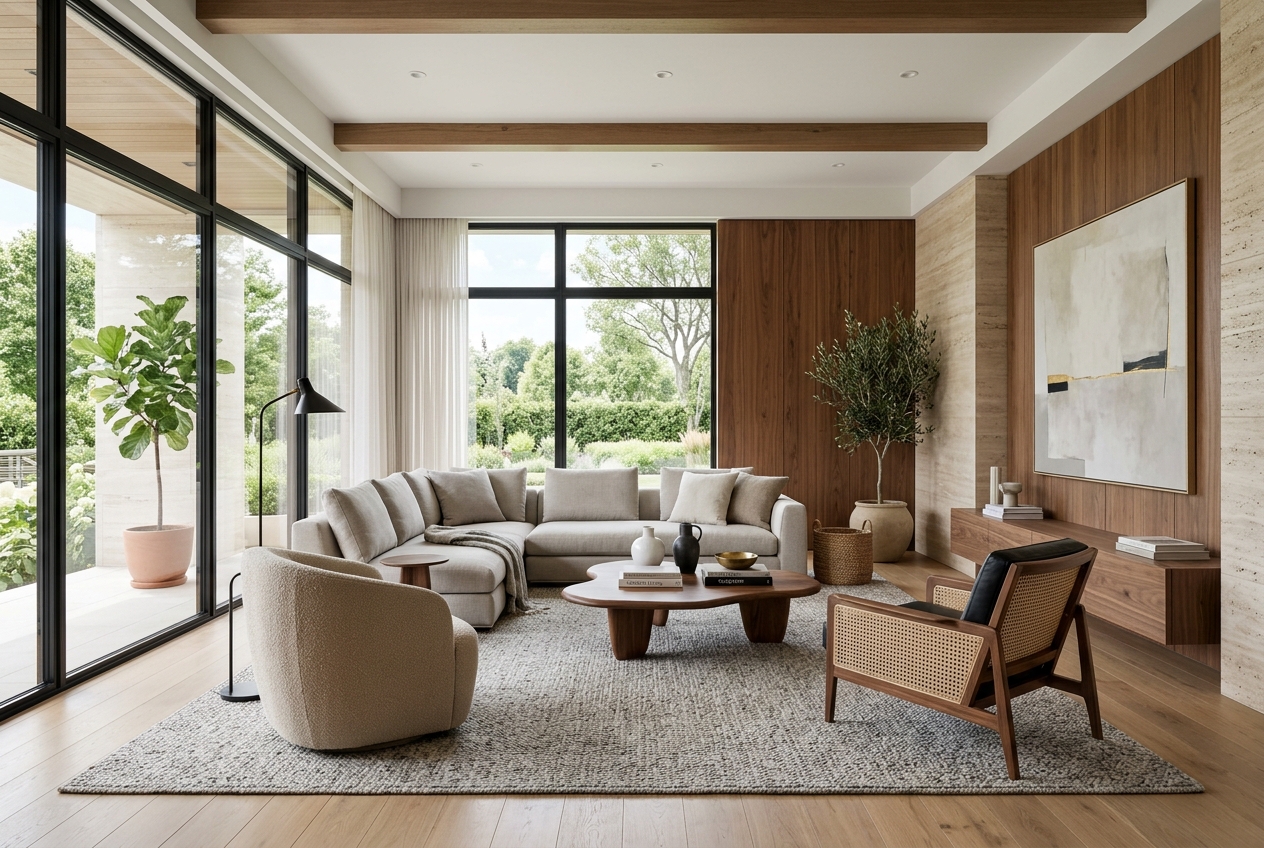
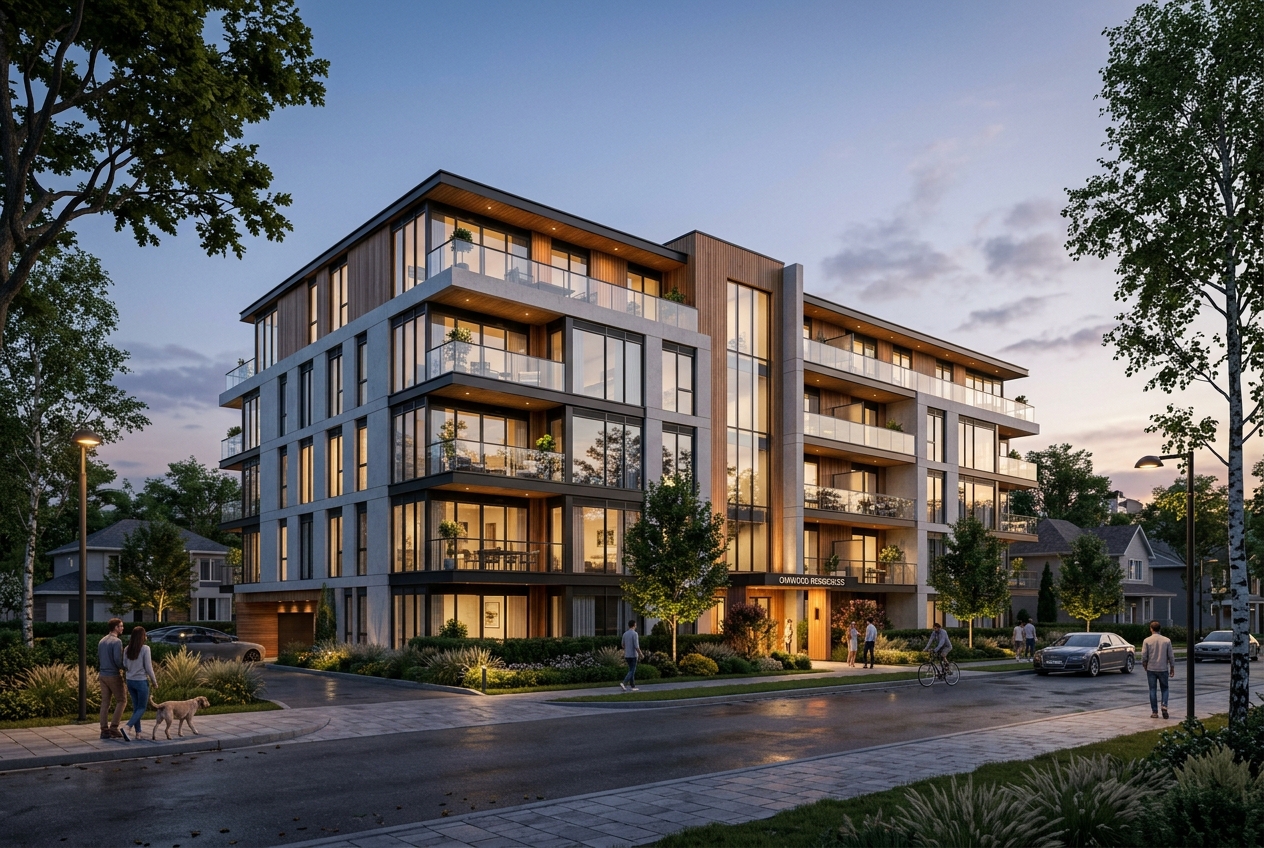
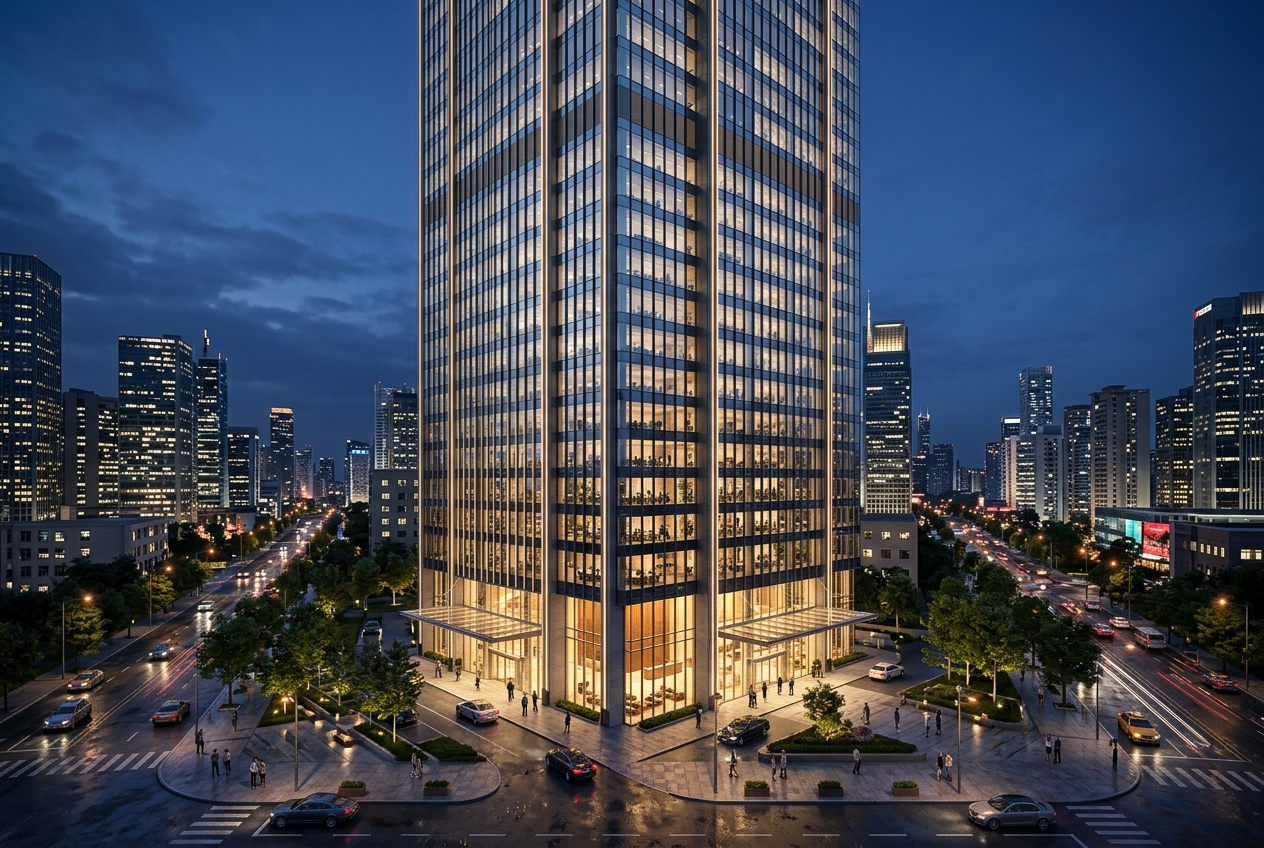
Every image below started as a Revit 3D model export. ReRender AI rendered every material detail and surface to 4K photoreal quality in seconds — original geometry and structure preserved throughout.
Questions
Questions Revit users ask before trying ReRender AI
Do I need V-Ray or Enscape to use ReRender AI?
No. ReRender AI works directly from your Revit model export. No plugins, no V-Ray setup, no additional software required. Export your Revit model as an image file and upload it directly to ReRender AI.
Does ReRender AI change my original Revit geometry?
No. ReRender AI preserves your original Revit geometry and structure throughout the entire rendering process. Only the material details and surface realism are enhanced to 4K photoreal quality.
Can I edit facades and context in my Revit renders?
Yes. ReRender AI includes facade and context editing tools that let you adjust materials, refine surrounding environment, and present multiple design directions to clients — all without touching your original Revit model.
Start Rendering Your Revit Models for Free
Upload your first Revit model export and see the difference in material detail and 4K photoreal quality in seconds. No plugins, no setup, no rebuild required.
Try ReRender AI Free