How to Create Figure-Ground Maps from Aerial Views
Learn how to use ReRender to turn aerial urban views into clean figure-ground maps for site analysis, portfolios, and urban design presentations.
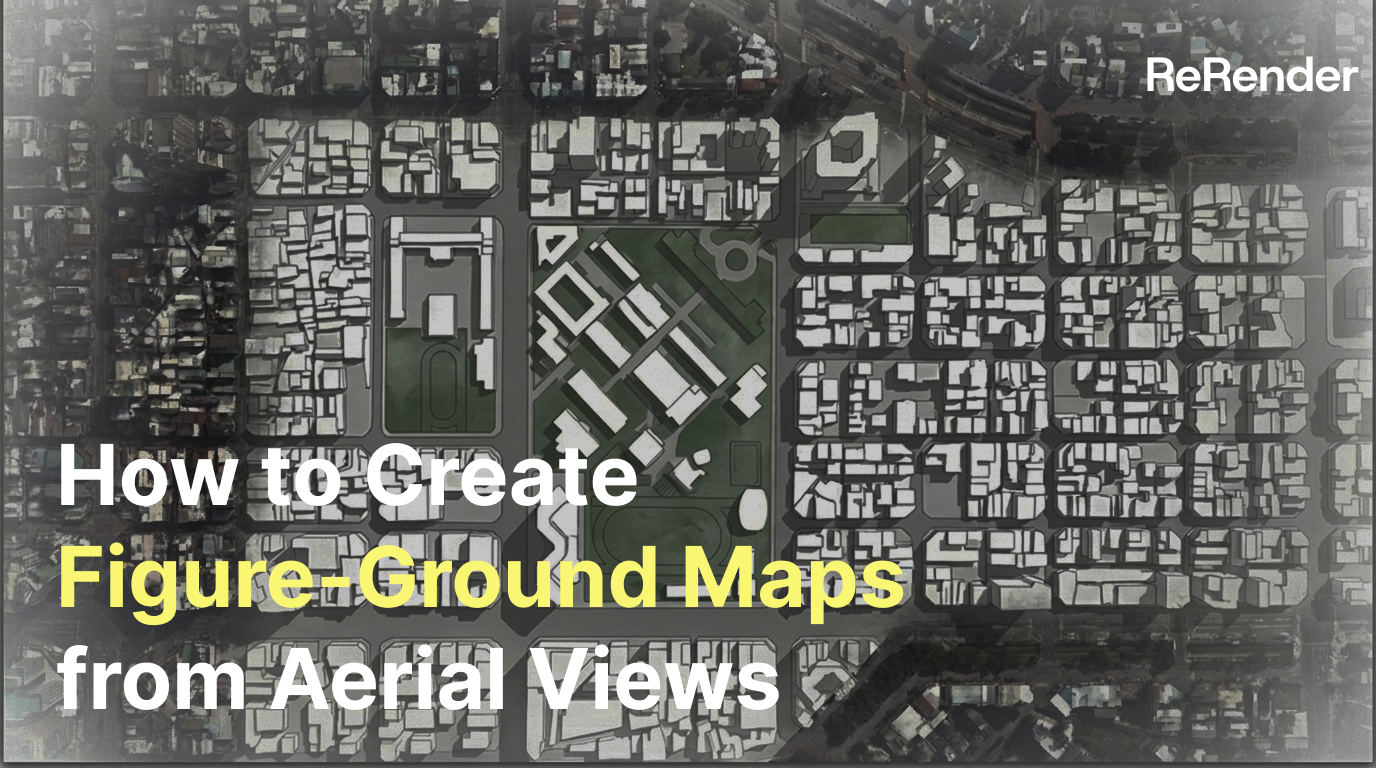
Why create figure-ground maps from aerial views?
In urban design and site analysis, a Figure-ground Map is one of the most useful drawings for understanding urban structure. It simplifies the city into a clear relationship between building mass and open space, helping designers read block density, street continuity, void distribution, and urban fabric.
In practice, however, we do not always start from a clean GIS or CAD file. Many early studies begin with Google Earth, drone footage, or high-angle aerial images. These images contain useful spatial information, but they also include a lot of visual noise: roof textures, cars, tree canopies, shadows, signage, and perspective distortion.
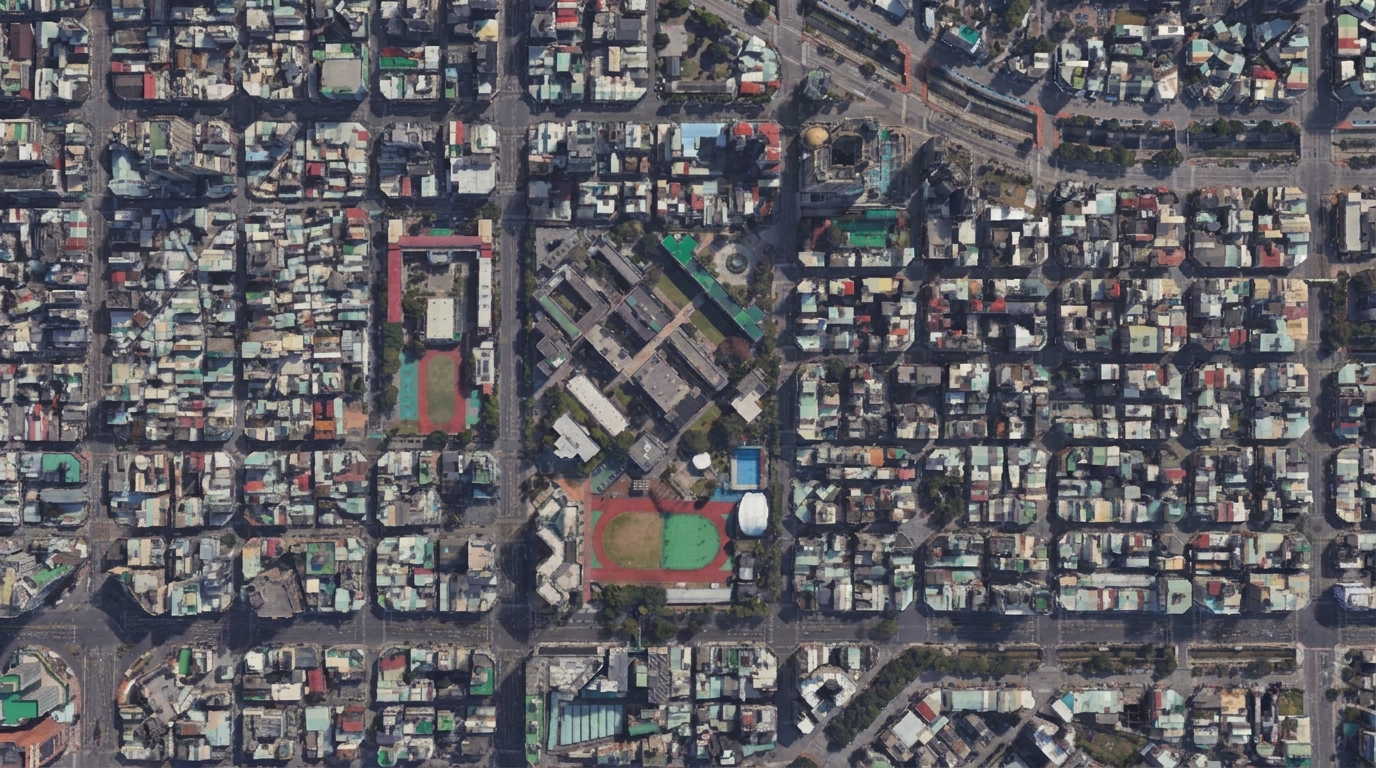 Figure 01. Using a high-angle aerial view as the reference image for urban analysis
In this tutorial, we’ll use ReRender to turn a complex aerial image into a clean portfolio-style Figure-ground Map. The goal is not to replace formal mapping or surveying. Instead, we want to quickly translate real-world urban imagery into a readable analysis base map.
Step 1 — Log in and prepare your aerial image
First, log in to ReRender and prepare a high-angle aerial image of the target urban block.

Before uploading, check whether the building boundaries are clear, whether the roads are continuous, and whether the main block structure is visible. If the image is heavily covered by trees or shadows, the model may mistake vegetation or dark areas for building mass.
The best input image is not always the most beautiful one. It should clearly show roofs, streets, courtyards, open spaces, and block edges.
At this stage, we are not asking the model to create a beautiful diagram yet. We first need the AI to understand the task: convert a real aerial view into a contrast map between solid building footprints and open space.
identify building footprints and open spaces from the aerial urban view, preserve street block structure, simplify roofs and ground texture, remove cars, trees, shadows, and visual noise
Step 2 — Go to Home and upload the image
After logging in, go to the ReRender home page and upload the aerial urban image.
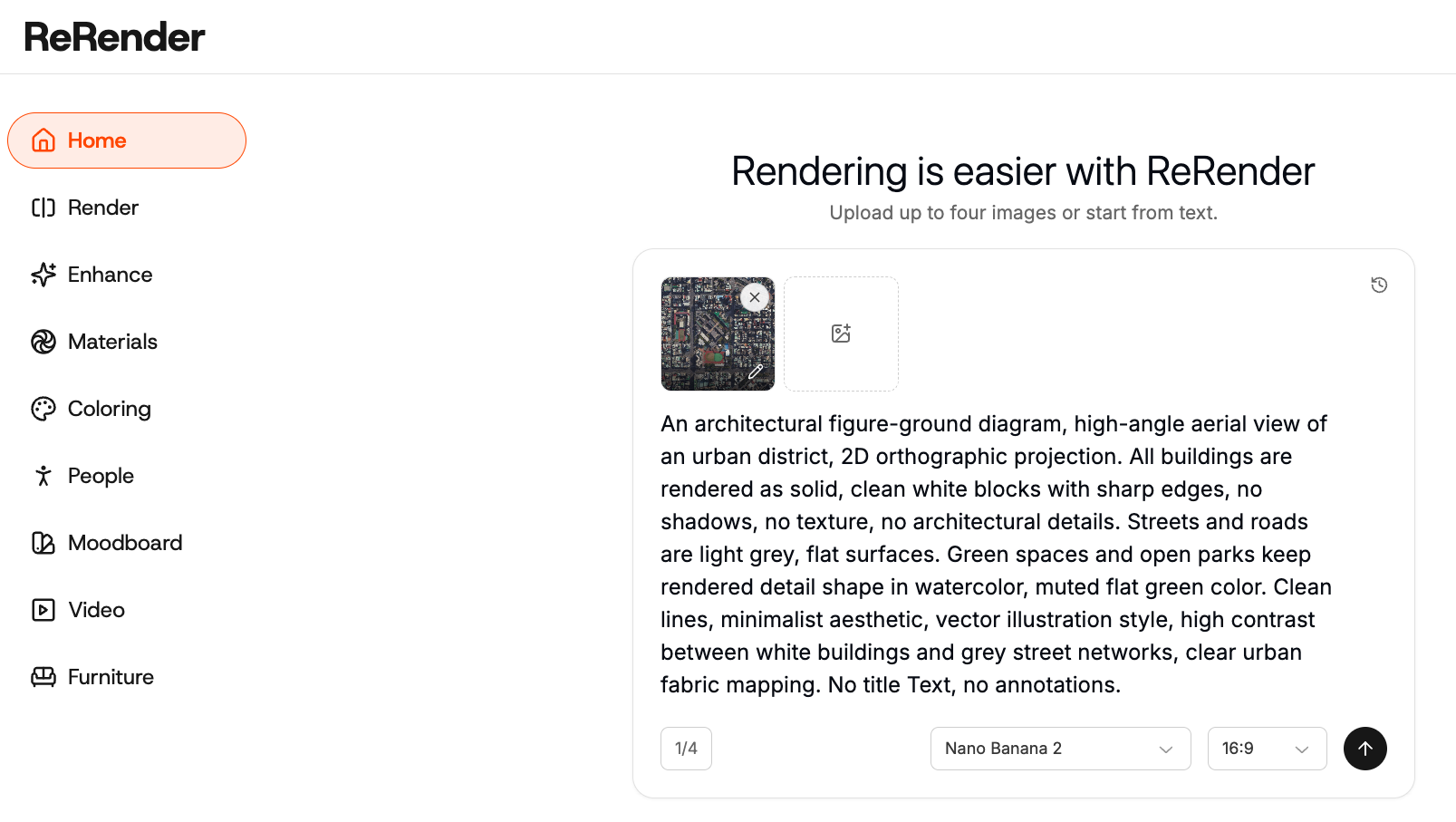
Use the image as the core reference for the transformation. The aerial image should guide the model’s understanding of building mass, street layout, open space, and block proportions.
The goal is to preserve the structure of the city, not to generate a new abstract map. For this reason, we usually avoid creative style prompts at the beginning.
Step 3 — Write the figure-ground prompt
Next, write a prompt that clearly describes the output as a Figure-ground Map.
The most important part is to define what should become “solid” and what should remain “void.” We usually describe buildings as black footprints and open spaces as white areas.
convert this aerial urban view into a clean professional figure-ground map, black building footprints, white open spaces, preserve street layout, urban blocks, building edges, courtyard spaces, and road network, minimal architectural portfolio style, no perspective, no shadows, no labels, no cars, no people, no trees
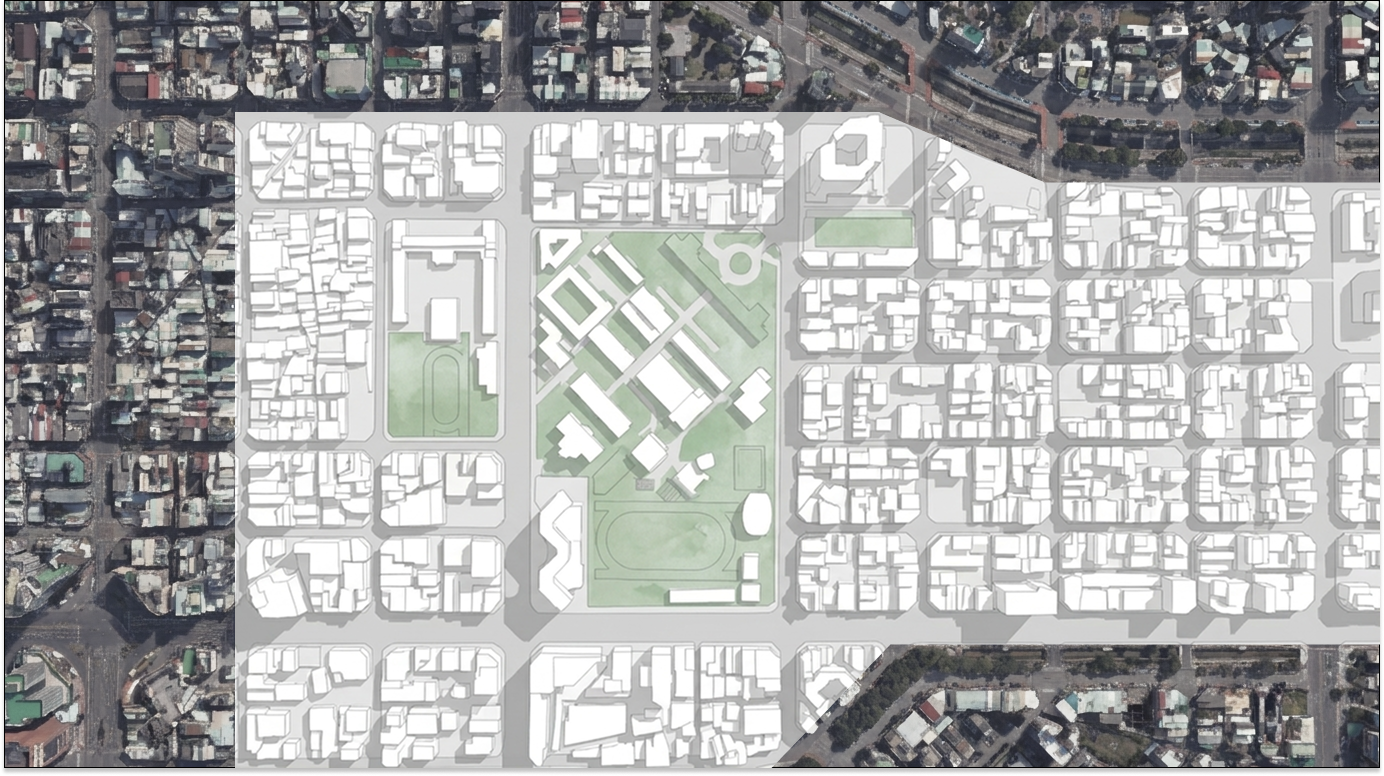 Figure 02. Turning an aerial urban view into a clean Figure-ground Map with ReRender
In our tests, words like black building footprints, white open spaces, and preserve street layout were more useful than simply saying “make it minimal.”
If the prompt only says “minimal city map,” the output may look clean but fail to preserve street proportions or building edges. For urban analysis, that loss of structure matters more than visual polish.
Step 4 — Edit dark corners and bright corners
After the first result is generated, check whether the figure-ground contrast is clear across the whole image.
Sometimes the result may still include dark corners caused by shadows, roof materials, or dense vegetation. In other cases, bright corners may lose building boundaries and turn into overly empty areas.
For dark corners, use an edit prompt that asks the model to simplify shadows and restore the building footprint logic.
clean up the dark corner areas, remove shadow noise, keep only solid building footprints and clear white open spaces, preserve block edges and street layout
For overly bright areas, use a prompt that asks the model to recover missing edges and strengthen the contrast.
recover missing building edges in the bright corner areas, improve figure-ground contrast, keep black building masses and white void spaces, preserve the original urban block structure
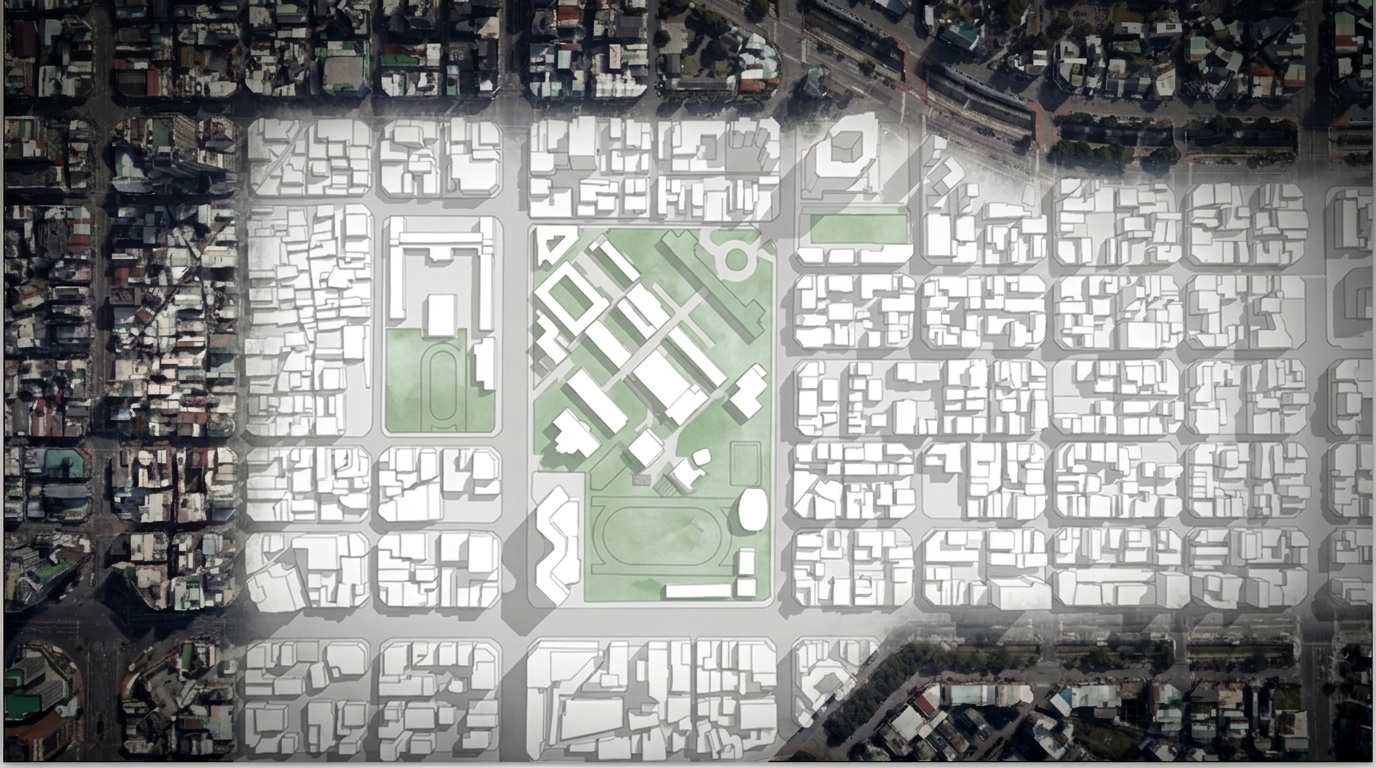 Figure 03. Editing dark and bright corner areas to improve figure-ground readability
This step is important because aerial photos are rarely evenly exposed. If we do not clean up these areas, the final diagram may look minimal but still be unreliable for analysis.
Step 5 — Remove noise and preserve proportions
Figure-ground maps are difficult because real aerial images contain too much information. Roof texture, tree canopies, shadows, parking lots, and road markings all compete with the actual building-open space relationship.
To reduce noise, we usually add restrictions such as remove shadows, remove trees, no roof texture, and flat 2D diagram.
flat 2D architectural analysis diagram, solid black building masses, clean white void spaces, remove roof texture, remove vegetation, remove shadows, preserve urban fabric and block proportions
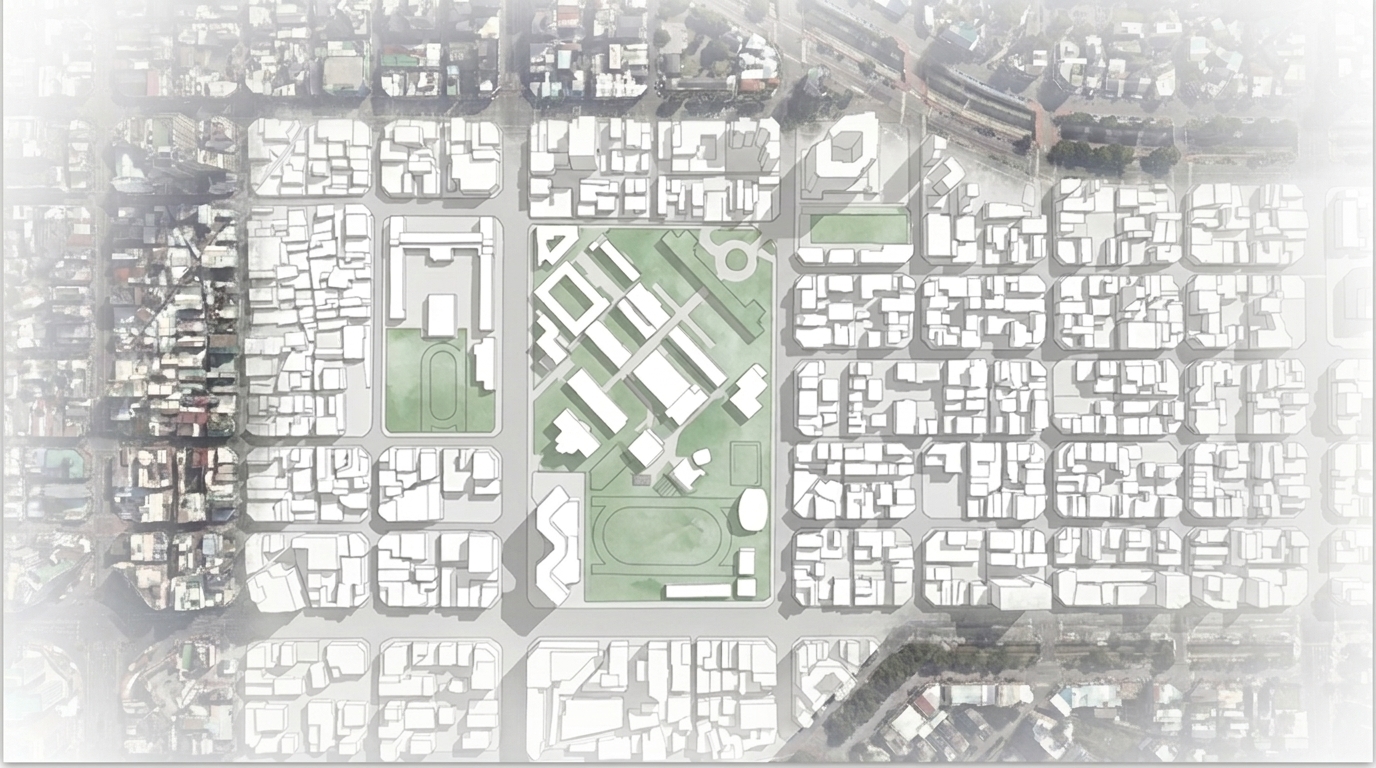 Figure 04. Removing visual noise to create a minimal urban analysis base map
The key trade-off is between cleanliness and accuracy. If the image is too simplified, the block loses important detail. If it is too faithful to the photo, the diagram keeps too much visual noise.
In most cases, we prioritize building edges, street networks, courtyards, and open spaces over roof material or landscape detail.
Step 6 — Use the map for portfolio and site analysis
This workflow can turn a complex aerial city image into a readable Figure-ground Map. It is useful for site analysis, portfolio base maps, urban fabric comparison, block density studies, and early-stage design references.
ReRender still requires manual review for building outlines, road continuity, open space boundaries, and black-white relationships. If the result is used for formal urban research or regulation analysis, designers should still verify it with GIS, CAD, or survey data.
But for early-stage proposals, this workflow can reduce the time needed to turn real aerial imagery into an analysis base map.
AI is not replacing urban analysis here. It helps us translate existing city imagery into a visual language that is easier to read, compare, and discuss.
Related posts

How to Create Planting Design Boards with AI
A planting design board is not just a plant collage. It turns climate, water use, and atmosphere into a clear proposal direction.
Willy·Jul 24, 2026
How to Turn Static Renders into Walkthrough Videos
A static render can become more than a single image. With the right video prompt, it can turn into an immersive spatial walkthrough.
Willy·Jul 21, 2026
How to Guide AI Design with Annotations
Sometimes drawing directly on the image is more accurate than writing a longer prompt.
Willy·Jul 16, 2026